Log in
Once the Tygron Client application has successfully installed, the login screen appears.
-
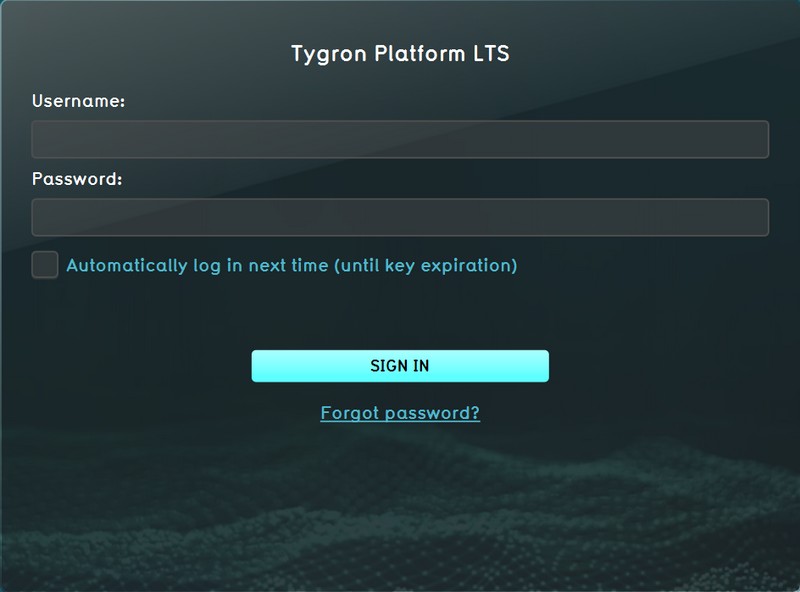 Log-in screen

How to log in to the Tygron Client
To use the Tygron Client you need to login. After logging in you get access to the Tygron Platform and can start working on your projects. You need a username and a password before you can login. You can sign up for an account on our website.
After entering your credentials, select the 'SIGN IN' button to proceed to the main menu.
Automatically logging in
If you need to login often on the same system, you can select to save your password. Note that enabling this option allows anyone with access to your computer to access your account and projects. Also please note that this setting will expire after a set period (default 1 week).
-
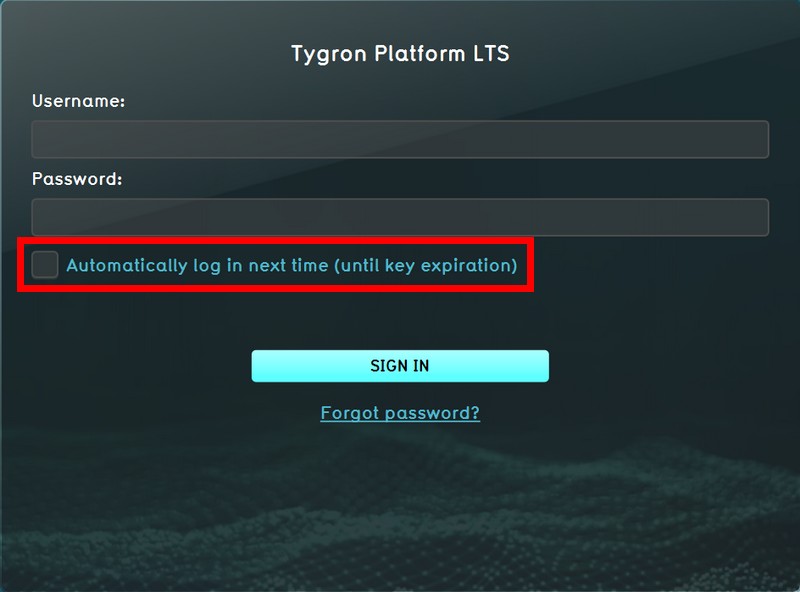 Automatic login check box

Reset lost password
In case you have lost your password please follow these steps:
- You can reset your password by selecting the "Forgot password?" option at the login panel.
- When you enter your username (email address), a new temporary password will be sent to your user e-mail.
- Use your username (email address) and the temporary password to login.
- After login you will be asked to change the temporary password into a new password.
- The password must meet a minimum length requirement; an error message will appear if it does not.
- Avoid simple passwords (e.g., "welcome2026" or "password123"); otherwise, the error "Unsafe or too simple password" will appear.
- Enter a different password if the previous one was rejected.
- You can now login using the new updated password.
-
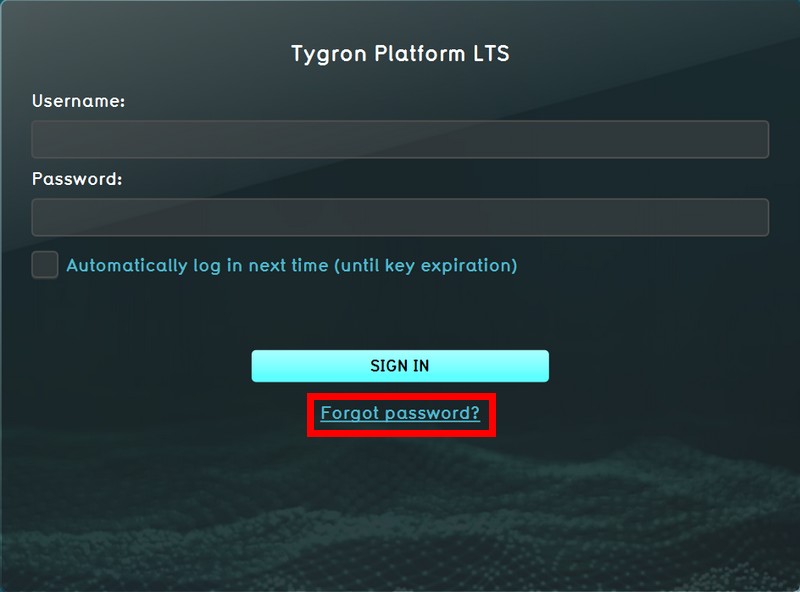 Request password reset
 -
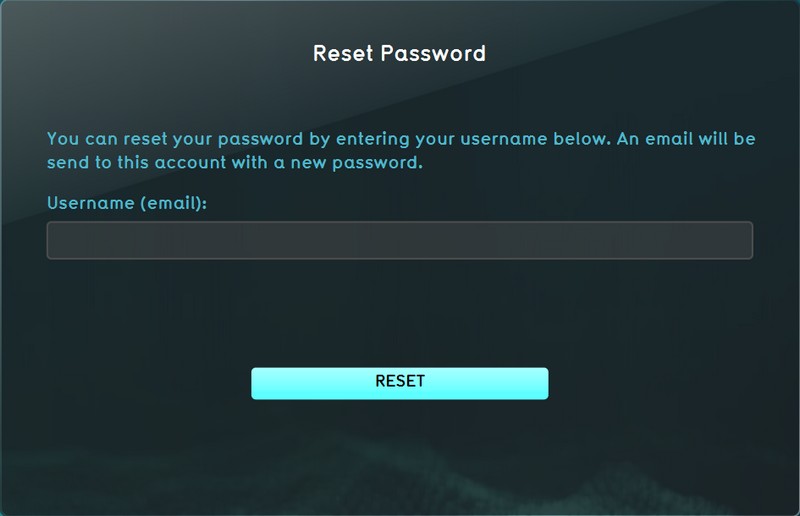 Enter user email address
 -
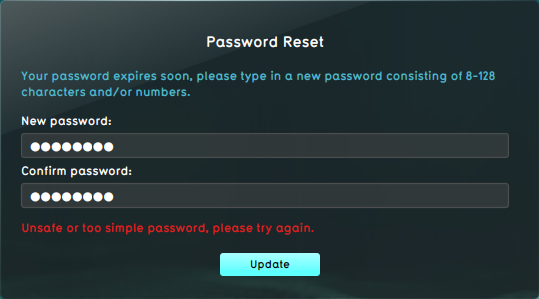 Unsafe or too simple password error


Logged in
Once logged in you can:
- Create a new project
- Start editing existing projects, including Demo projects.
- Manage your user account