How to import discharge areas: Difference between revisions
Jump to navigation
Jump to search
No edit summary |
No edit summary |
||
| Line 4: | Line 4: | ||
|In step 2.1, select the first option to Import discharge areas and click on the blue Import button | |In step 2.1, select the first option to Import discharge areas and click on the blue Import button | ||
|Proceed by following the steps as stated on the [[Geo Data Wizard]] page. | |Proceed by following the steps as stated on the [[Geo Data Wizard]] page. | ||
|In the last | |In the last step, select the attribute name that represents the [[Overlay key]] for the [[Discharge_area_(Watershed_Overlay)|Discharge areas]]. | ||
}} | }} | ||
<gallery mode=nolines> | <gallery mode=nolines> | ||
File:Specified_discharge_areas.PNG|Select the third option and fill in the parameters. | File:Specified_discharge_areas.PNG|Select the third option and fill in the parameters. | ||
File:Import_discharge_areas.PNG|3. Select the | File:Import_discharge_areas.PNG|3. Select the first option and click on ''Import''. | ||
File:Overlay_key_discharge_areas.PNG|5. Connect the attribute to the [[Overlay key]]. | File:Overlay_key_discharge_areas.PNG|5. Connect the attribute to the [[Overlay key]]. | ||
</gallery> | </gallery> | ||
Latest revision as of 08:58, 14 October 2026
How to import discharge areas:
- Add the Watershed Overlay and open the Configuration wizard from the right panel.
- In step 2, choose the option Specified Discharge areas
- In step 2.1, select the first option to Import discharge areas and click on the blue Import button
- Proceed by following the steps as stated on the Geo Data Wizard page.
- In the last step, select the attribute name that represents the Overlay key for the Discharge areas.
-
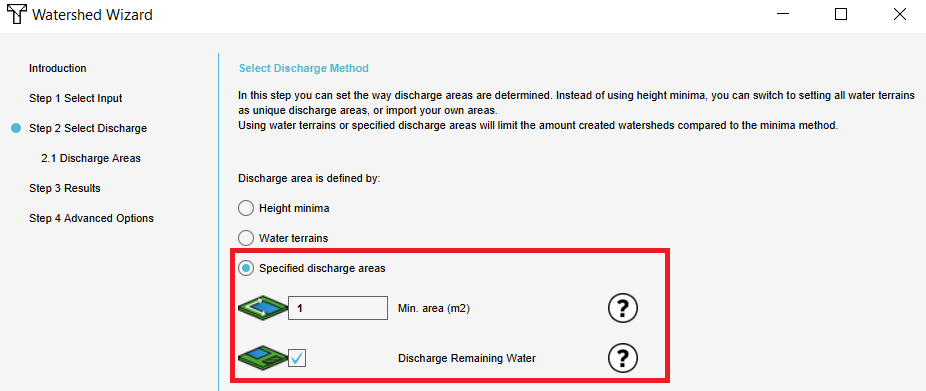 Select the third option and fill in the parameters.
 -
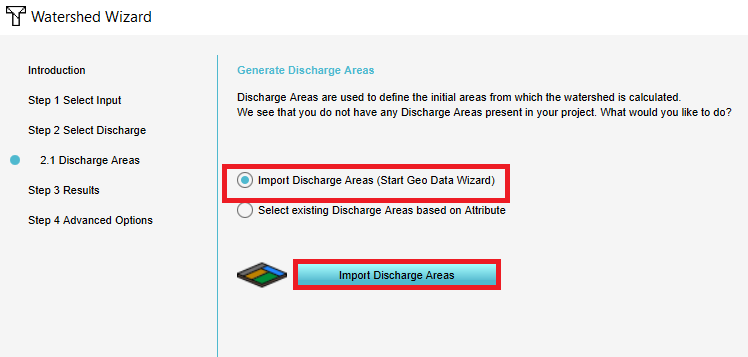 3. Select the first option and click on Import.
 -
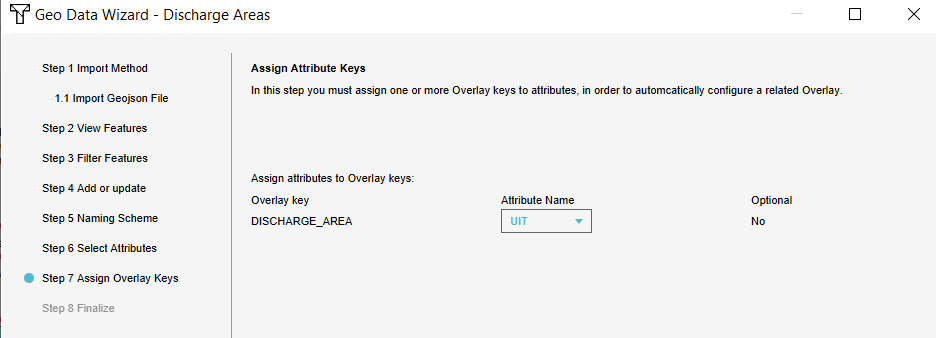 5. Connect the attribute to the Overlay key.


