How to create a subdomain: Difference between revisions
Jump to navigation
Jump to search
No edit summary |
No edit summary |
||
| Line 1: | Line 1: | ||
A subdomain enables you to give other users access to your domain in a separate subdomain: The user gets access to this subdomain only and cannot see or edit other projects or subdomains in your domain. The option for creating a subdomain is available only for users with a Commercial Partnership | A subdomain enables you to give other users access to your domain in a separate subdomain: The user gets access to this subdomain only and cannot see or edit other projects or subdomains in your domain. The option for creating a subdomain is available only for users with a Commercial Partnership. | ||
''[[Main Menu]] → Options → My license'' | ''[[Main Menu]] → Options → My license'' | ||
Latest revision as of 12:05, 25 February 2026
A subdomain enables you to give other users access to your domain in a separate subdomain: The user gets access to this subdomain only and cannot see or edit other projects or subdomains in your domain. The option for creating a subdomain is available only for users with a Commercial Partnership.
Main Menu → Options → My license
How to create a subdomain:
- Click edit in the line 'sub domains'
- On the bottom right corner you can now click add
- Enter the name of the subdomain
- Enter the amount of km2 per subdomain
- Enter the amount of km2 per project within the subdomain
- Go back to the main menu and select Users
- Select per user the correct subdomain you want to give them access to
-
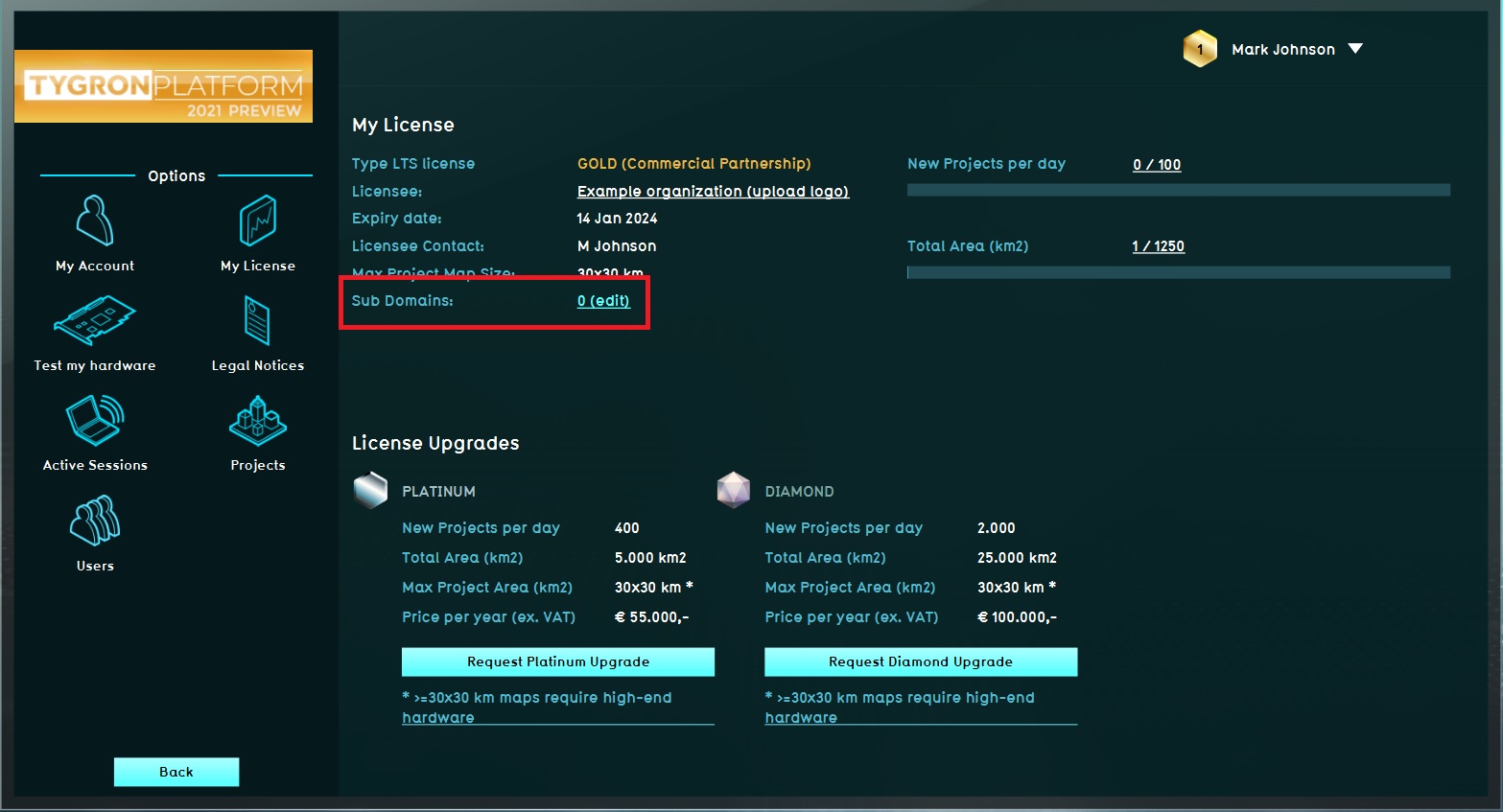 Step 1, Edit subdomain.
 -
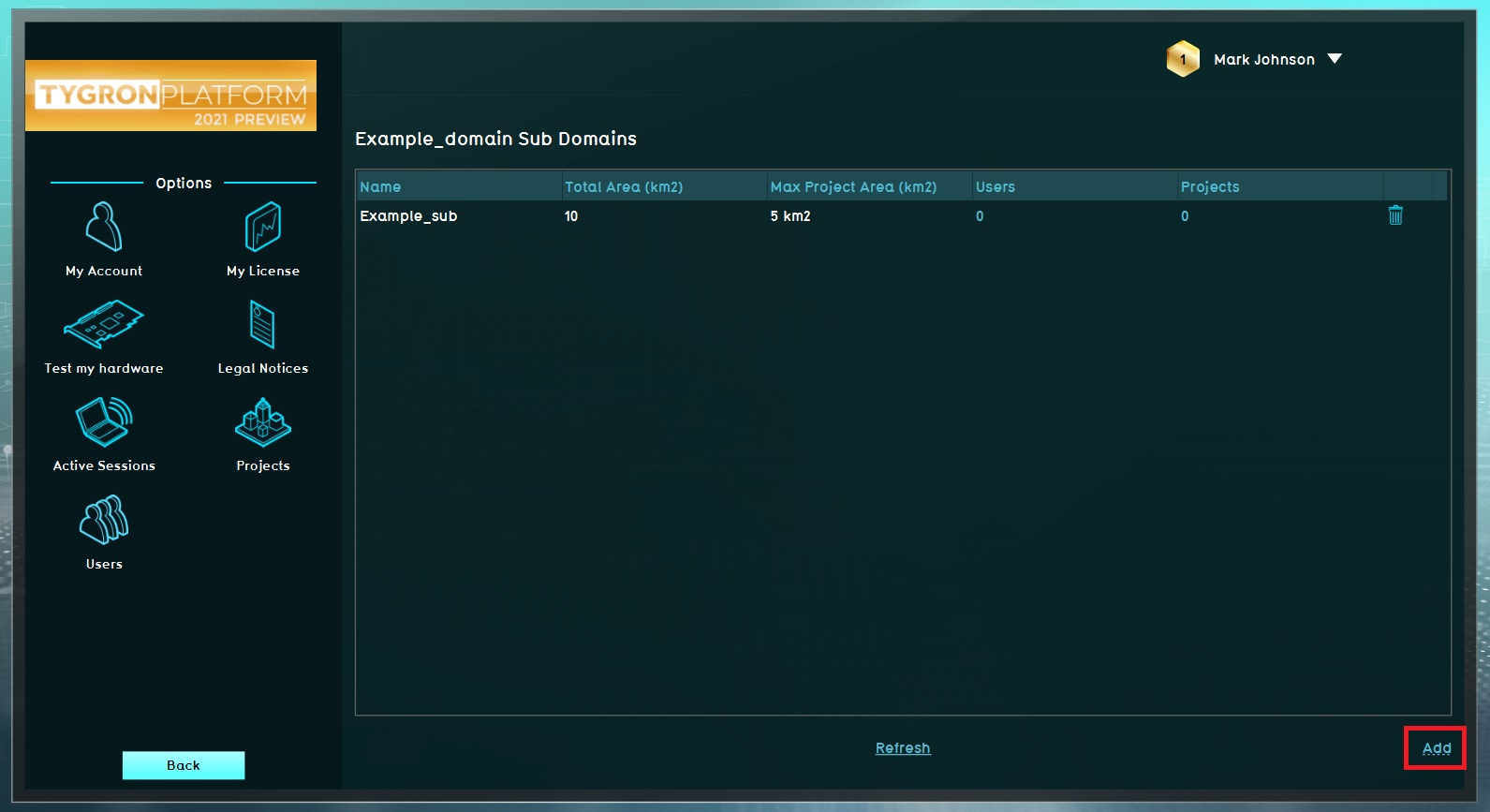 Step 2, Add subdomain.
 -
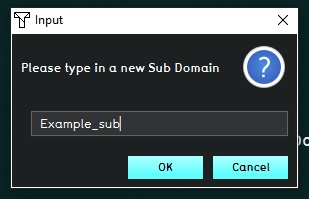 Step 3, Name the subdomain.
 -
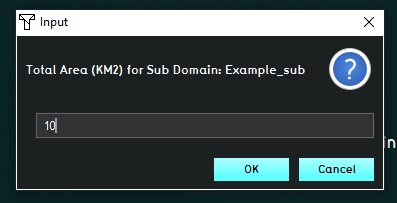 Step 4, Enter subdomain permissions.
 -
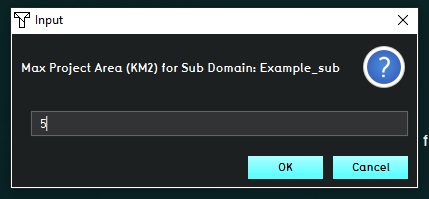 Step 5, Enter subdomain permissions per project.
 -
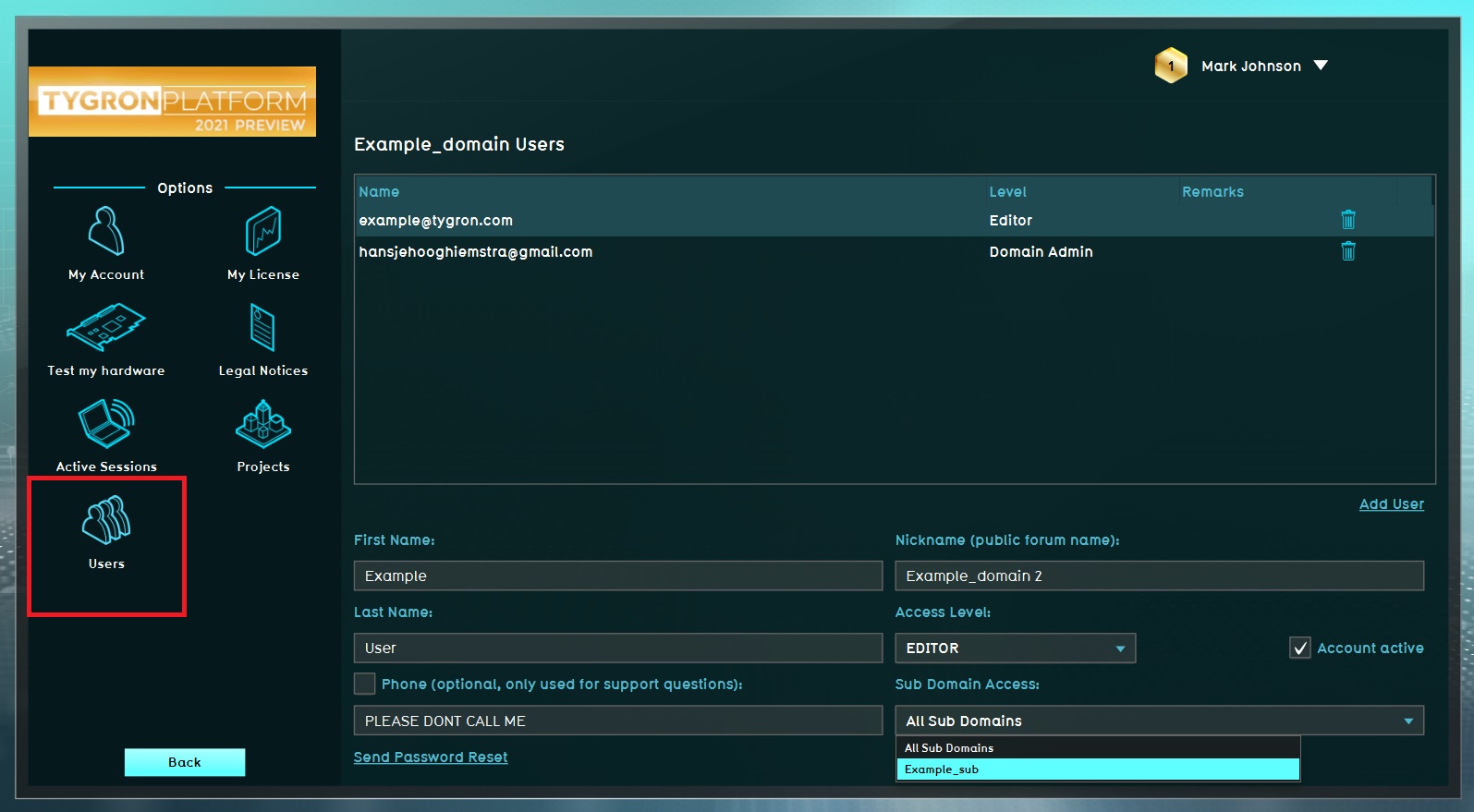 Step 6, Select Users.
 -
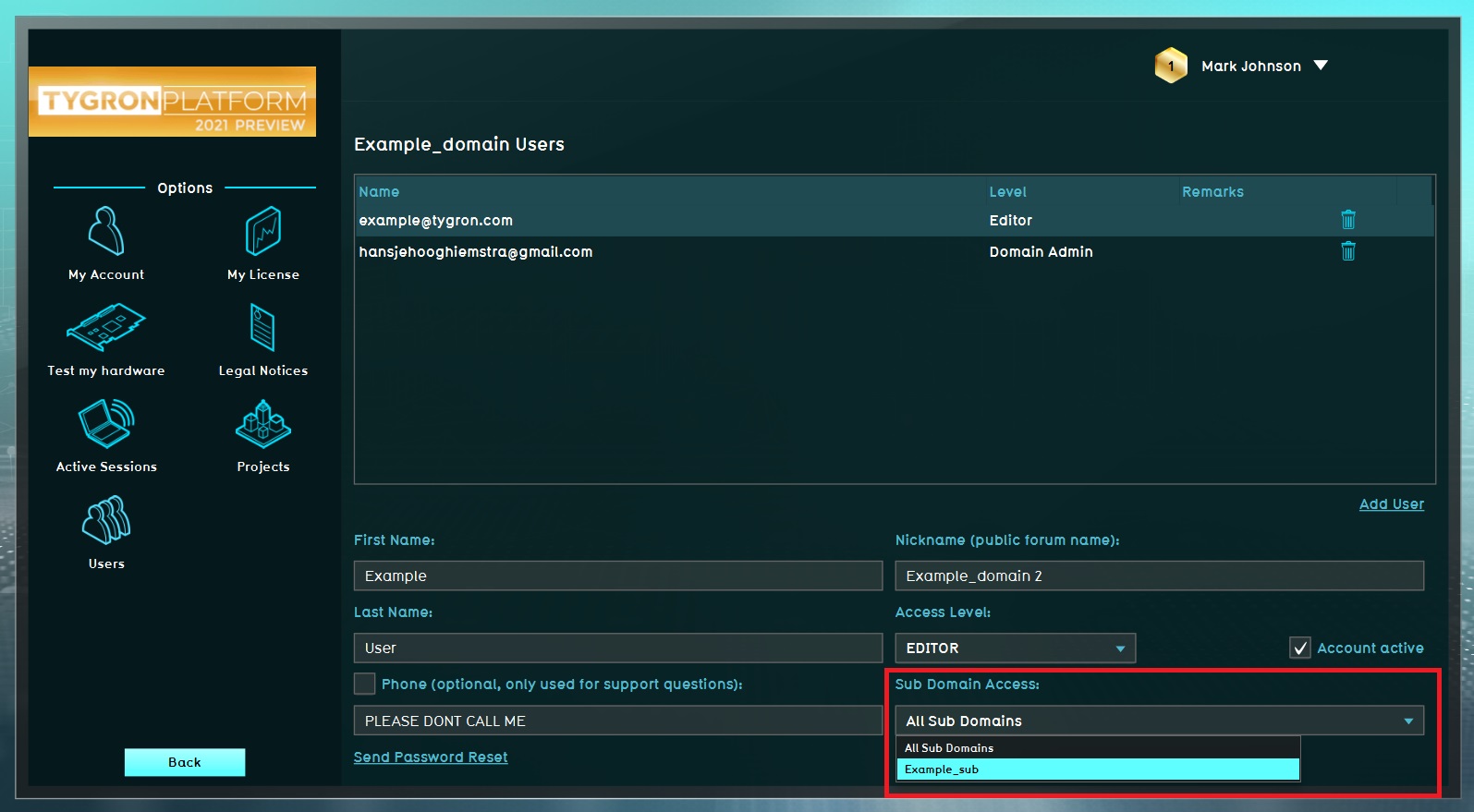 Step 7, Select correct subdomain.


