How to prepare data in Microsoft Excel: Difference between revisions
No edit summary |
|||
| (9 intermediate revisions by 2 users not shown) | |||
| Line 1: | Line 1: | ||
Microsoft Excel and other spread sheet programs are | On this page some general information is given about how to convert data in a spreadsheet. | ||
Microsoft Excel and other spread sheet programs are known to be able to read many data types, however, sometimes this data is interpreted differently than desired. Below are tips to convert/ process data in spread sheets after import and prior to further processing in the Tygron Platform. | |||
==Importing text as numbers in the legacy Import Text wizard in Office 2019 and up== | ==Importing text as numbers in the legacy Import Text wizard in Office 2019 and up== | ||
Office 2019 and later have limited text import options; you must activate the legacy wizard first. | |||
See the following article on how to activate the legacy text import wizard:[https://support.office.com/en-us/article/text-import-wizard-c5b02af6-fda1-4440-899f-f78bafe41857 Text Import Wizard] | See the following article on how to activate the legacy text import wizard:[https://support.office.com/en-us/article/text-import-wizard-c5b02af6-fda1-4440-899f-f78bafe41857 Text Import Wizard] | ||
==Converting text to numbers== | ==Converting text to numbers== | ||
If imported Excel columns have numbers aligned to the left, they are likely being interpreted as text. In the following article from Microsoft it is explained how to easily convert columns with text to numbers: | |||
[https://support.office.com/en-us/article/convert-numbers-stored-as-text-to-numbers-40105f2a-fe79-4477-a171-c5bad0f0a885 Convert numbers stored as text to numbers] | [https://support.office.com/en-us/article/convert-numbers-stored-as-text-to-numbers-40105f2a-fe79-4477-a171-c5bad0f0a885 Convert numbers stored as text to numbers] | ||
[[File:Aligned_to_the_left.png]] | |||
==Removing spaces and other characters in bulk from ranges of cells== | ==Removing spaces and other characters in bulk from ranges of cells== | ||
Redundant spaces or characters in imported cells can hinder data interpretation; use 'Find and Replace' to remove them. | |||
{{Editor steps|title=remove redundant spaces from imported data in a work book or spread sheet|Select the cell (range) affected|Select Start|Select Edit > Replace|Enter a space in the search field|Leave the replace field empty|Select Replace All}} | {{Editor steps|title=remove redundant spaces from imported data in a work book or spread sheet|Select the cell (range) affected|Select Start|Select Edit > Replace|Enter a space in the search field|Leave the replace field empty|Select Replace All}} | ||
| Line 23: | Line 26: | ||
File:ExcelReplaceAllBtn1.jpg|6. Select Replace All | File:ExcelReplaceAllBtn1.jpg|6. Select Replace All | ||
</gallery> | </gallery> | ||
{{article end | |||
|seealso= | |||
* [[Excel]] | |||
* [[Var (Excel)]] | |||
}} | |||
[[Category:How-to's]] | |||
Latest revision as of 09:35, 8 July 2026
On this page some general information is given about how to convert data in a spreadsheet. Microsoft Excel and other spread sheet programs are known to be able to read many data types, however, sometimes this data is interpreted differently than desired. Below are tips to convert/ process data in spread sheets after import and prior to further processing in the Tygron Platform.
Importing text as numbers in the legacy Import Text wizard in Office 2019 and up
Office 2019 and later have limited text import options; you must activate the legacy wizard first.
See the following article on how to activate the legacy text import wizard:Text Import Wizard
Converting text to numbers
If imported Excel columns have numbers aligned to the left, they are likely being interpreted as text. In the following article from Microsoft it is explained how to easily convert columns with text to numbers:
Convert numbers stored as text to numbers

Removing spaces and other characters in bulk from ranges of cells
Redundant spaces or characters in imported cells can hinder data interpretation; use 'Find and Replace' to remove them.
- Select the cell (range) affected
- Select Start
- Select Edit > Replace
- Enter a space in the search field
- Leave the replace field empty
- Select Replace All
-
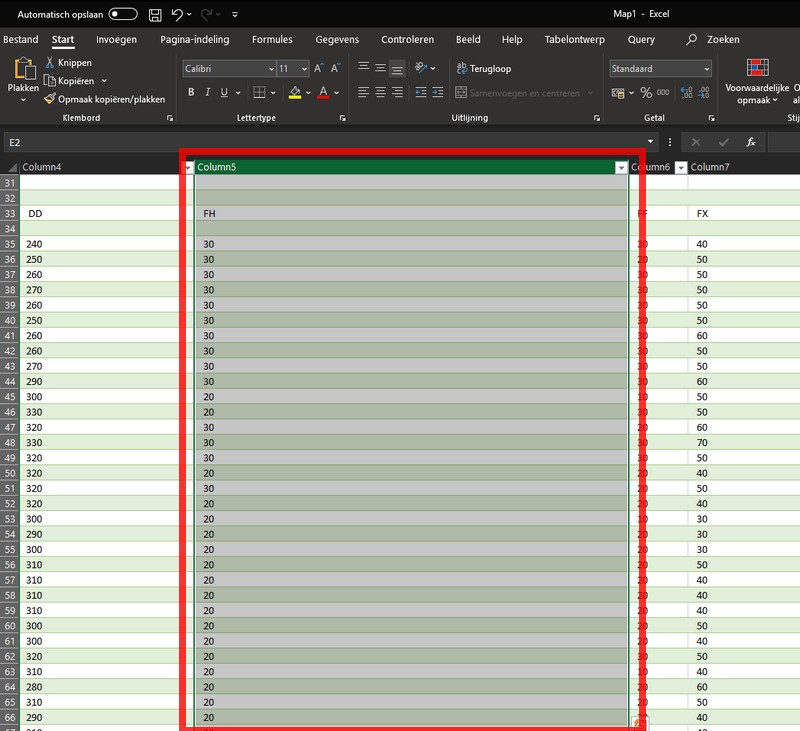 1. Select the cell (range) affected
 -
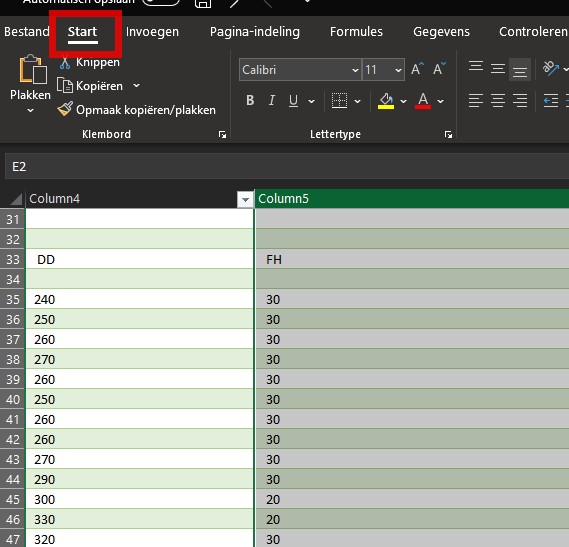 2. Select Start
 -
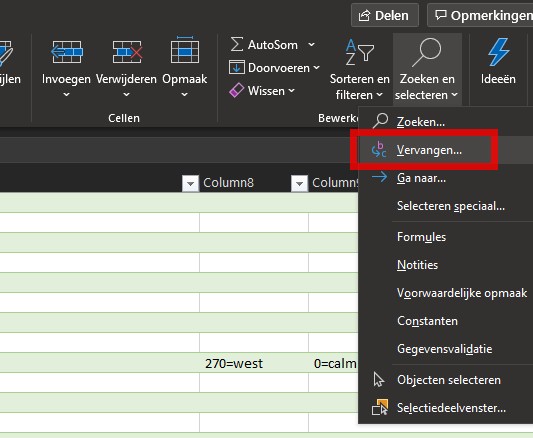 3. Select Edit > Replace
 -
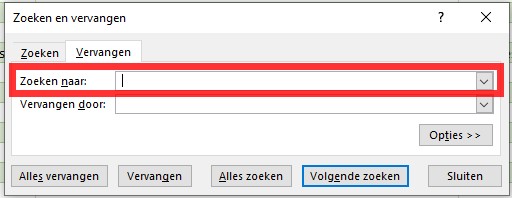 4. Enter a space in the search field
 -
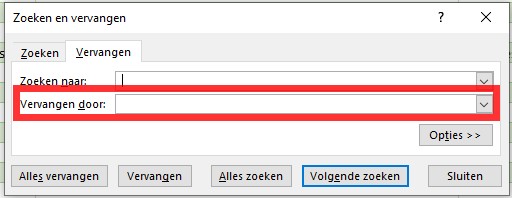 5. Leave the replace field empty
 -
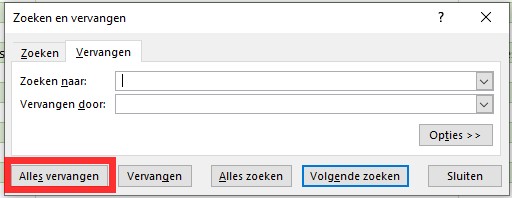 6. Select Replace All


