How to create a Basic Mode Project: Difference between revisions
Jump to navigation
Jump to search
Created page with "For some Projects, especially at more broad regional levels, the Basic Mode may provide more appropriate performance while still being well-suited for a broad range of use-cases and calculations. However, the choice for the creation of a Basic Mode Project must be made at the time of Project creation. {{editor location steps|mode=Main menu|New Project}} {{howto|title=create a Basic Mode Project | In the main menu, opt to c..." |
No edit summary |
||
| (13 intermediate revisions by 3 users not shown) | |||
| Line 1: | Line 1: | ||
For some [[Project]]s, especially at | For some [[Project]]s, especially at broader regional levels, the [[Basic Mode]] may provide more appropriate performance while still being well-suited for a broad range of use-cases and calculations. However, you must select [[Basic Mode]] already during [[New Project Wizard|Project creation]]. | ||
{{editor location steps|mode=[[Main menu]]|New Project}} | {{editor location steps|mode=[[Main menu]]|New Project}} | ||
| Line 6: | Line 6: | ||
| In the [[main menu]], opt to create a new [[Project]]. | | In the [[main menu]], opt to create a new [[Project]]. | ||
| Enter the name for the [[Project]] as usual. | | Enter the name for the [[Project]] as usual. | ||
| Select a language and unit system as usual. | |||
| For the [[Detail level]], select [[Basic Mode|Basic]]. | | For the [[Detail level]], select [[Basic Mode|Basic]]. | ||
| Click on "Create new Project", and progress through the rest of the [[New Project Wizard|Project creation]] process as usual. | | Click on "Create new Project", and progress through the rest of the [[New Project Wizard|Project creation]] process as usual. | ||
}} | |||
{{gallery | |||
|LogOnPanel_04042022.jpg|1. Log in to client. | |||
|NewProject_04042022.jpg|2. Select new project in the Main Menu. | |||
|BasicMode_04042022.jpg|3. After naming your project, select Basic for Detail Level. | |||
|BasicModeMapSelection_04042022.jpg|4. Use the Map Wizard to select the Basic Mode map size and location of your project. | |||
}} | }} | ||
{{article end | {{article end | ||
|notes= | |notes= | ||
* When using a [[Project Template]] to create a new [[Project]], the new [[Project]] will inherit its [[Detail level]] from the [[Project Template]]. Meaning that the new project also inherits whether it is Basic Mode from its template. | |||
* When using a [[Project Template]] to create a new [[Project]] | |||
|seealso= | |seealso= | ||
* [[Basic Mode]] | * [[Basic Mode]] | ||
}} | }} | ||
[[Category:How-to's]] | |||
Latest revision as of 09:52, 7 July 2026
For some Projects, especially at broader regional levels, the Basic Mode may provide more appropriate performance while still being well-suited for a broad range of use-cases and calculations. However, you must select Basic Mode already during Project creation.
Main menu → New Project
How to create a Basic Mode Project:
- In the main menu, opt to create a new Project.
- Enter the name for the Project as usual.
- Select a language and unit system as usual.
- For the Detail level, select Basic.
- Click on "Create new Project", and progress through the rest of the Project creation process as usual.
-
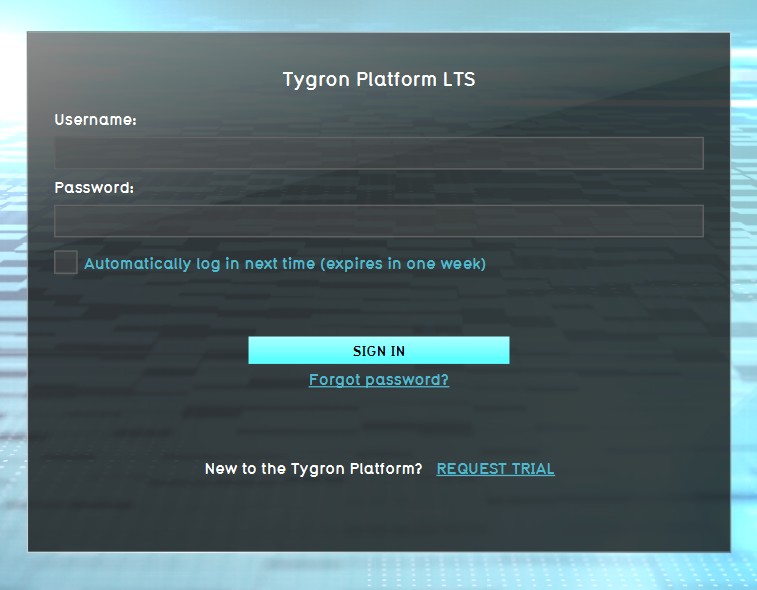 1. Log in to client.
 -
 2. Select new project in the Main Menu.
 -
 3. After naming your project, select Basic for Detail Level.
 -
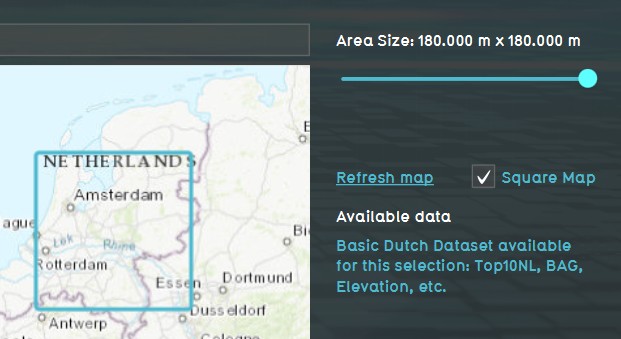 4. Use the Map Wizard to select the Basic Mode map size and location of your project.


Notes
- When using a Project Template to create a new Project, the new Project will inherit its Detail level from the Project Template. Meaning that the new project also inherits whether it is Basic Mode from its template.