Log in: Difference between revisions
No edit summary |
|||
| (41 intermediate revisions by 8 users not shown) | |||
| Line 1: | Line 1: | ||
{| | Once the {{software|client}} application has [[install|successfully installed]], the login screen appears. | ||
[[ | |||
<gallery mode="nolines" heights="250px" widths="250px"> | |||
Image:Login2.jpg|Log-in screen | |||
<gallery mode="nolines"> | |||
Image: | |||
</gallery> | </gallery> | ||
===How to log in to the | ===How to log in to the {{software|client}}=== | ||
To use the {{software|client}} you need to login. After logging in you get access to the {{software}} and can start working on your [[project]]s. You need a [[Account#username|username]] and a [[Account#password|password]] before you can login. You can sign up for an account on our [http://www.tygron.com website]. | |||
After entering your credentials, select the ' | After entering your credentials, select the 'SIGN IN' button to proceed to the [[main menu]]. | ||
==Automatically logging in== | ==Automatically logging in== | ||
If you need to login often on the same system, you can select to save your password. You should be aware, that if you select this option, anyone who accesses the | If you need to login often on the same system, you can select to save your password. You should be aware, that if you select this option, anyone who accesses the {{software|client}} on your computer, has access to your account and [[project]](s) without having to enter your log-in credentials. Also please note that this setting will expire after a set period (default 1 week). | ||
<gallery mode="nolines"> | <gallery mode="nolines" heights="250px" widths="250px"> | ||
Image: | Image:AutoLogin2.jpg|Automatic login check box | ||
</gallery> | </gallery> | ||
== | ==Reset lost password== | ||
In case you have lost your password please follow these steps: | |||
<gallery mode="nolines"> | |||
Image: | {{howto|title=Reset password | ||
Image: | | You can reset your password by selecting the "Forgot password?" option at the login panel. | ||
| When you enter your username (email address), a new temporary password will be sent to your user e-mail. | |||
| Use your username (email address) and the temporary password to login. | |||
| After login you will be asked to change the temporary password into a new password. | |||
| This password must contain a minimum amount of characters. You will get feedback when this is not the case. | |||
| As an additional safety measure the password must also not be too simple, e.g. "welcome2026" or "password123" both may have enough characters but are deemed very unsafe and cannot be used. In this case you will get an error message: "Unsafe or too simple password". | |||
| Try typing a different password until it is accepted. | |||
| You can now login using the new updated password. | |||
}} | |||
<gallery mode="nolines" heights="250px" widths="250px"> | |||
Image:LoginResetPWRequest2.jpg|Request password reset | |||
Image:LoginResetPWPanel2.jpg|Enter user email address | |||
Image:Unsafe.png|Unsafe or too simple password error | |||
</gallery> | </gallery> | ||
== | ==Logged in== | ||
Once logged in you can: | |||
* [[New Project Wizard|Create a new project]] | |||
* Start editing existing [[project]]s, including [[List of Demo Projects|Demo project]]s. | |||
* [[Account management|Manage your user account]] | |||
{{article end | |||
|seealso= | |||
* [[New Project Wizard]] | |||
* [[Install]] | |||
}} | |||
Latest revision as of 11:04, 27 February 2026
Once the Tygron Client application has successfully installed, the login screen appears.
-
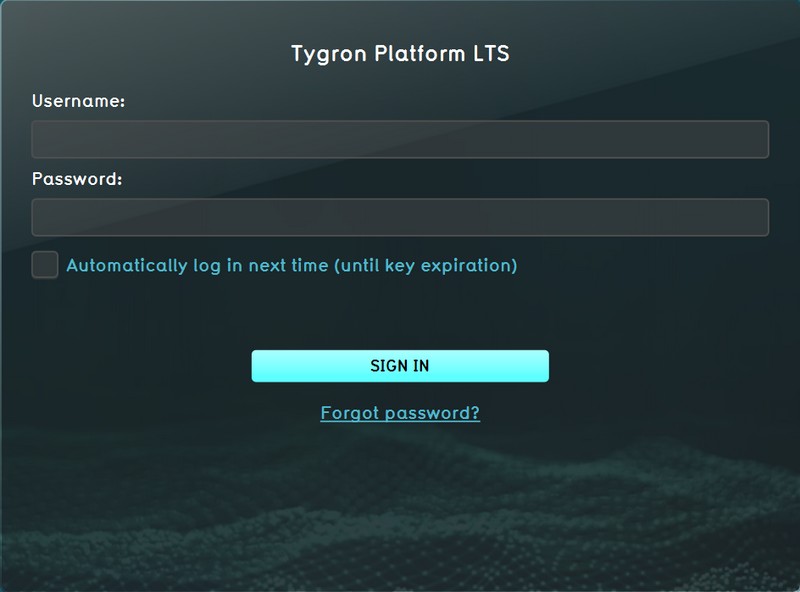 Log-in screen

How to log in to the Tygron Client
To use the Tygron Client you need to login. After logging in you get access to the Tygron Platform and can start working on your projects. You need a username and a password before you can login. You can sign up for an account on our website.
After entering your credentials, select the 'SIGN IN' button to proceed to the main menu.
Automatically logging in
If you need to login often on the same system, you can select to save your password. You should be aware, that if you select this option, anyone who accesses the Tygron Client on your computer, has access to your account and project(s) without having to enter your log-in credentials. Also please note that this setting will expire after a set period (default 1 week).
-
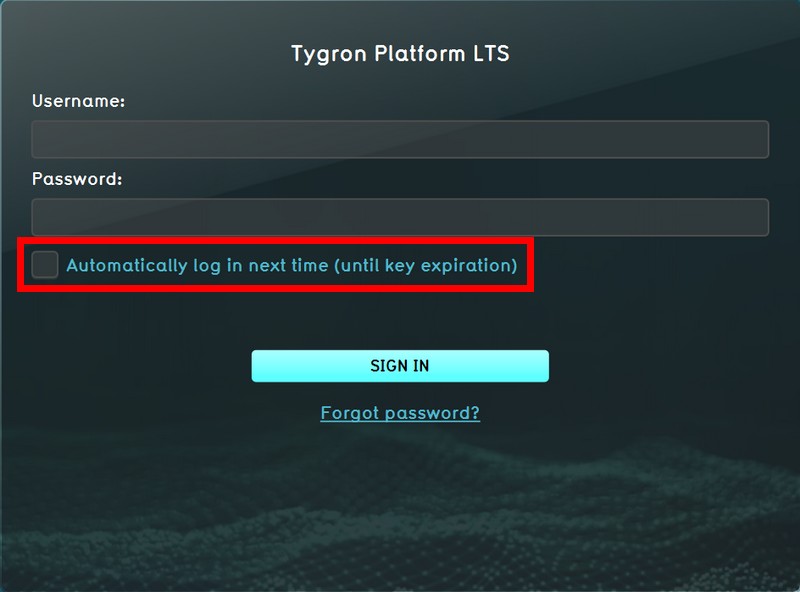 Automatic login check box

Reset lost password
In case you have lost your password please follow these steps:
- You can reset your password by selecting the "Forgot password?" option at the login panel.
- When you enter your username (email address), a new temporary password will be sent to your user e-mail.
- Use your username (email address) and the temporary password to login.
- After login you will be asked to change the temporary password into a new password.
- This password must contain a minimum amount of characters. You will get feedback when this is not the case.
- As an additional safety measure the password must also not be too simple, e.g. "welcome2026" or "password123" both may have enough characters but are deemed very unsafe and cannot be used. In this case you will get an error message: "Unsafe or too simple password".
- Try typing a different password until it is accepted.
- You can now login using the new updated password.
-
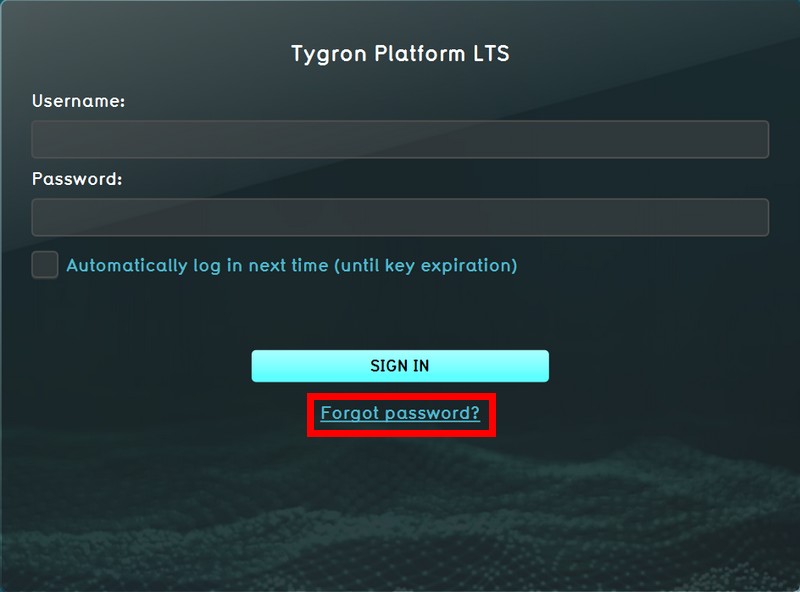 Request password reset
 -
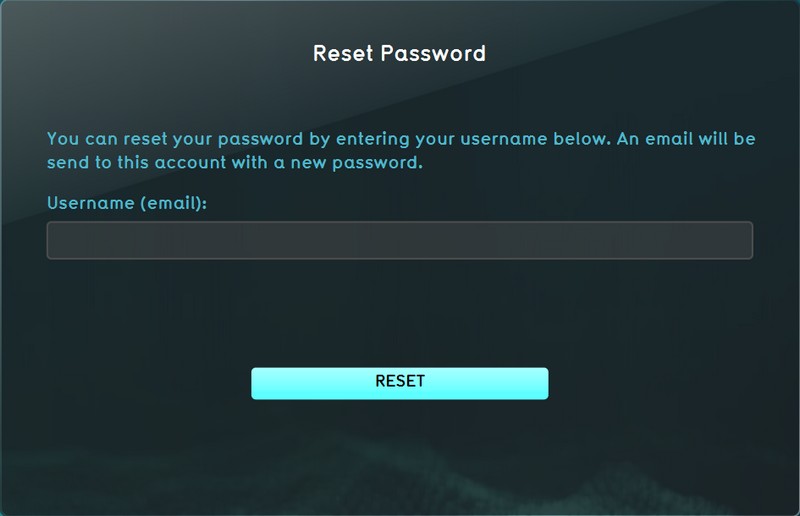 Enter user email address
 -
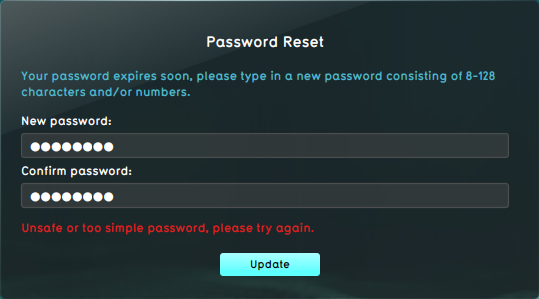 Unsafe or too simple password error


Logged in
Once logged in you can:
- Create a new project
- Start editing existing projects, including Demo projects.
- Manage your user account